CTS Issuance Process via MOBILE APP
info
See the terminology and comparison table with the PIN Code Authentication method on the Overview page.
Participants
| Component | Description |
|---|---|
| Subscriber | The user issued a CTS to sign documents with a CKS remotely (RMS). |
| MOBILE APP (INTRUSTCA) | The mobile app of the public CKS service provider, supporting electronic identification (eKYC) for CTS issuance and signing confirmation. The provider sends an email guiding the Subscriber through the steps. |
| Partner's internal application (ERP/CRM/HIS, etc.) | The internal management application of the connecting organization (e.g., ERP, CRM, HIS, etc.). The Intrust DSS service provider supports the connection via API/SDK. |
1. General CTS Issuance & Remote Signing Process
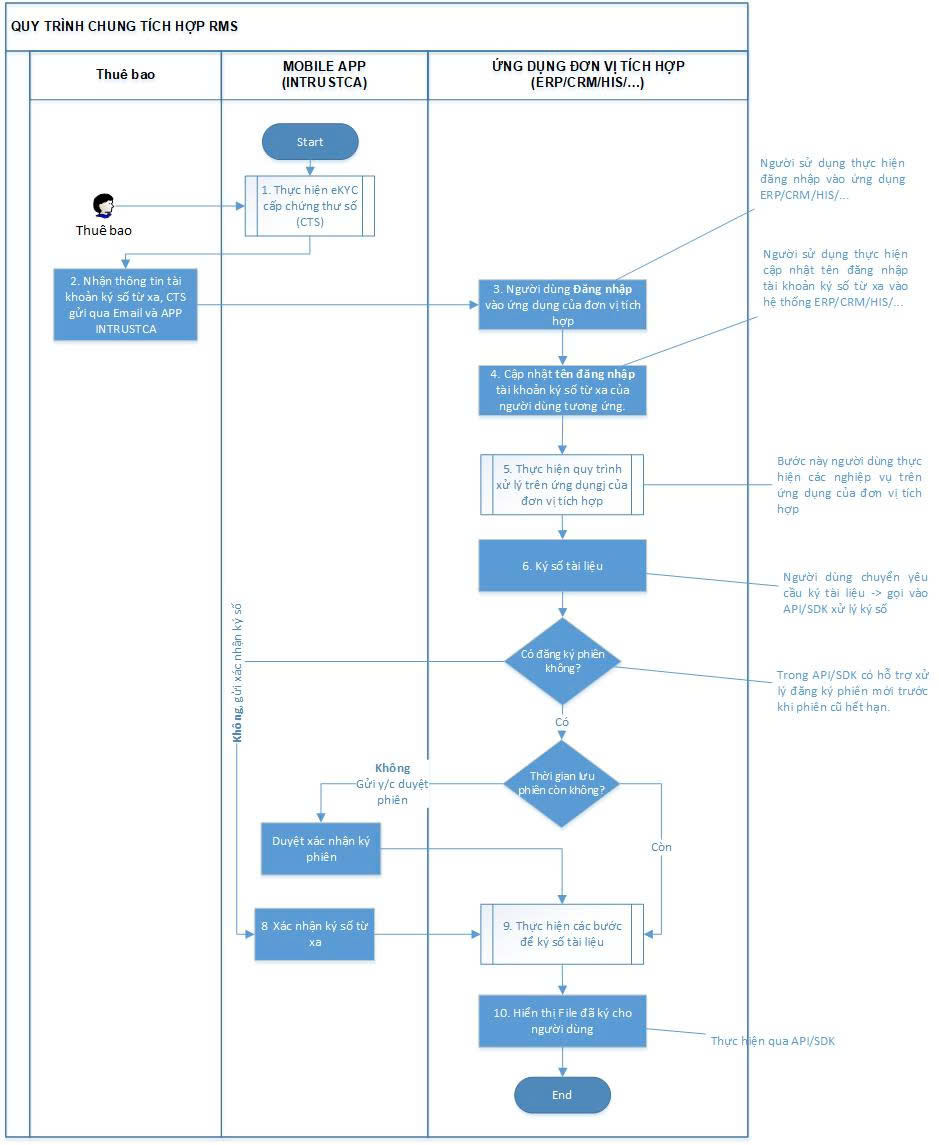
| Step | Task | Description |
|---|---|---|
| B1 | Perform eKYC to be issued a digital certificate (CTS) | The Subscriber receives an email requesting them to perform eKYC for CTS issuance via the INTRUSTCA MOBILE APP (with installation instructions and step sequence) → once complete, the system proceeds to B2. Download the app: iOS / Android. Note: for the Subscriber to receive the eKYC email, the service-using organization needs to send a list of Subscribers (using the template) to the provider to be loaded into the CTS issuance management system. |
| B2 | Receive remote signing (RMS) account and CTS information | Once eKYC is completed successfully, the Subscriber receives RMS account and CTS information by email and directly in the INTRUSTCA app. |
| B3 | The user logs in to the Partner's internal application | Log in with the account issued directly on the app. If the remote signing account has not yet been linked to the login account → proceed to B4; if already linked → go straight to B7. |
| B4 | Log in to the remote signing account | The system requests login to the remote signing account. If not yet confirmed on the INTRUSTCA APP → proceed to B5 (the Partner's internal application shows a waiting-for-confirmation state for up to T = 120 seconds); if already confirmed → go straight to B7. |
| B5 | Confirm login to the remote signing account | The Subscriber receives a notification, opens the INTRUSTCA APP to confirm the RMS account → the system stores the native device identifier (DeviceId) → proceeds to B6. |
| B6 | Perform processing on the Partner's internal application | The Subscriber carries out management operations on the internal application; when a document needs to be signed → proceed to B7. (This step is not directly related to the integration; it is only described so the connecting organization understands the context.) |
| B7 | Submit the document for signing | The connecting organization's application calls the API/SDK to perform the signing. The API/SDK checks whether a stored remote signing confirmation session exists, and if so, whether it is still valid → if none exists or it has expired: proceed to B8; if still valid: go straight to B9. |
| B8 | Confirm remote signing | The Subscriber logs in to the INTRUSTCA APP to confirm the RMS signing → proceeds to B9. A confirmation session can be configured to be kept for a period of time (allowed by the native device & authenticated via biometrics) to skip repeated confirmations. |
| B9 | Perform the signing | Sign the data, process the signature merge → proceeds to B10. |
| B10 | Display the signed file to the user | The API/SDK returns the signed file to the integrated application and displays it to the Subscriber → End. |
See the step-by-step guide (app installation, eKYC, native device confirmation) at Test Account Provisioning.
note
The signing confirmation right on the INTRUSTCA MOBILE APP (steps B7–B9, with or without a kept session) is exactly the mechanism the signed_with_session field of the sign API describes (true = confirm once, sign multiple times within the session; false = confirm separately for each sign). See the "Native Device Authentication" group in the API Reference for the field/endpoint details to call.
2. Remote Signing Password Change Process (forgot password)
The flow that helps a Subscriber reset their password, performed directly on the INTRUSTCA MOBILE APP.
| Step | Task | Description |
|---|---|---|
| B1 | Download the MOBILE APP INTRUSTCA and install it | The Subscriber downloads the INTRUSTCA APP to reset their password: iOS / Android. If the phone already has the APP, skip this step. |
| B2 | Enter the username of the RMS account | On the login screen, the Subscriber enters the RMS account username → proceeds to B3. |
| B3 | Tap "Forgot Password" | The Subscriber taps "Forgot Password" → the system checks, and if satisfied, proceeds to B4. |
| B4 | Send an OTP code via SMS to the Subscriber's native device | The system sends an OTP code via SMS to the Subscriber to verify their identity → waits for the Subscriber to enter the confirmation OTP code. |
| B5 | Receive OTP code via SMS | The Subscriber receives the OTP code via SMS. |
| B6 | Enter the OTP code to confirm the Subscriber's identity | The Subscriber enters the confirmation OTP code → if the OTP code is valid → proceeds to B7. |
| B7 | Change the new password and confirm the new password | The Subscriber enters the new password and confirmation password → once the password change succeeds → proceeds to B8. |
| B8 | The user logs in to the application and updates the new password | The Subscriber logs back in to the Partner's internal application, updating the new password of the RMS account via the provider's SDK → End. |