Guide to Registering for CTS via Electronic Application — Remote Signing with PIN Code Authentication
This page provides detailed instructions for the CTS registration flow via electronic application (PIN code authentication), previously described at the conceptual/diagram level in CTS Registration & Issuance Process via Portal.
Overall Process
| Step | Task | Description |
|---|---|---|
| B1 | Send the list of CTS issuance requests | Intrust DSS sends the connecting organization's point of contact a template file to compile the list of CTS issuance requests — there are 2 template types: CTS for an Individual within an Organization, and CTS for an Individual. |
| B2 | Compile the list of CTS issuance requests | The connecting organization compiles the list using the template and sends it to Intrust DSS via the official Support channel. [TO CONFIRM] — the source document notes a specific receiving contact; the official contact channel (hotline/email) needs to be confirmed before publishing. Once received, Intrust DSS checks and loads the list into the CTS issuance management system; the system automatically sends a notification email to each Subscriber on the list. |
| B3 | Receive registration guidance notification | INTRUSTCA sends a notification email with the sequence of steps — the Subscriber opens the email to register for the digital certificate. |
| B4 | Confirm registration information | The Subscriber follows the instructions in the email, confirming the IntrustCA digital certificate issuance registration information. |
| B5 | Take photos of the verification document | After confirming the registration information, take photos of the registered verification document (ID Card/CCCD/Passport). |
| B6 | INTRUSTCA provider reviews the application | INTRUSTCA reviews the CTS issuance application — the system automatically sends notifications via email and mobile phone to proceed with the next steps. |
| B7 | Confirm the remote signing account and digital certificate | The Subscriber performs the steps on their phone to complete the registration. |
Detailed Instructions
1. Confirm Registration Information
-
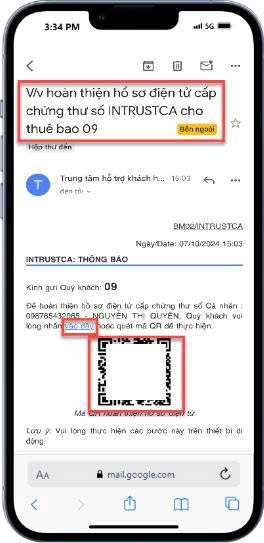
Open the email "Re: completing the electronic application for INTRUSTCA digital certificate issuance for the subscriber", tap the "click here" link or scan the QR code with your phone to open the registration page.
-
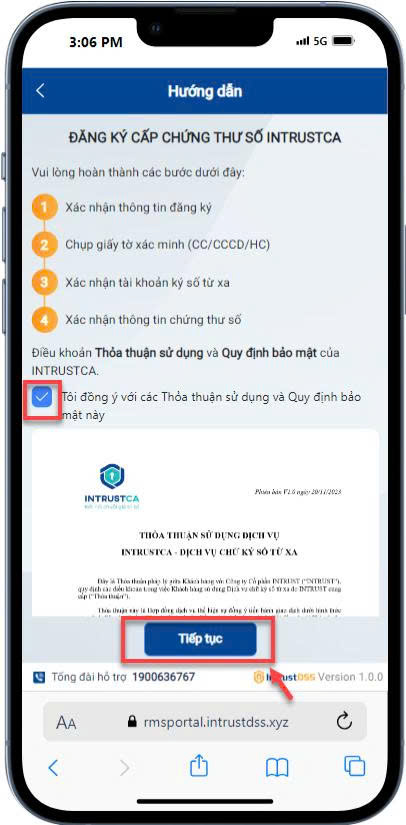
On the "INTRUSTCA Digital Certificate Registration Guide" screen, review the terms, check the "I agree to these Terms of Use and Information Security Policy" checkbox → tap Continue.
-
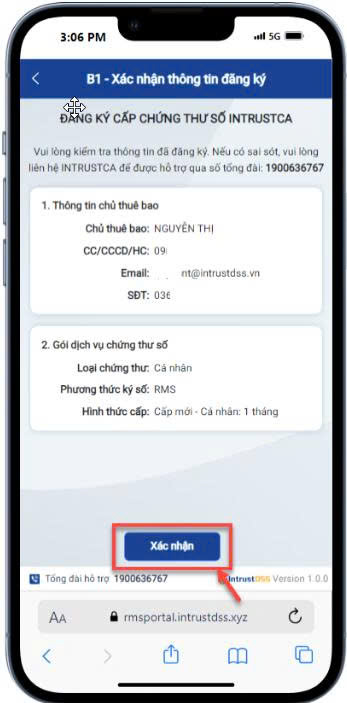
On the "Confirm CTS Registration Information" screen, review the subscriber's information (ID Card/CCCD/Passport, email, phone number) and the digital certificate service package → if accurate, tap Confirm.
-
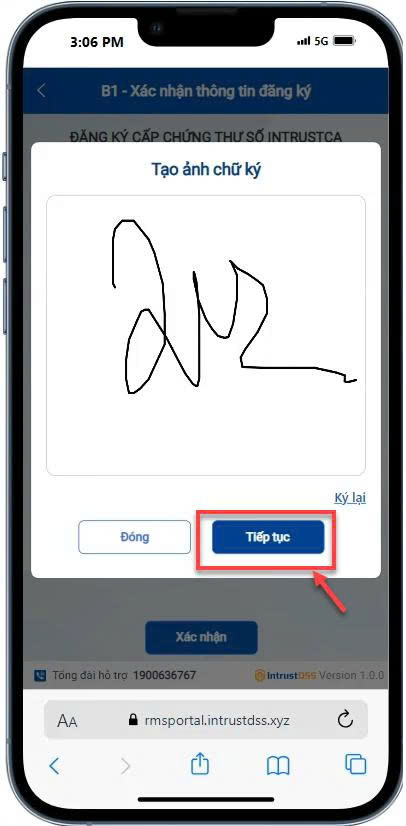
Draw your handwritten signature (make sure to draw within the center marker) → tap Continue. You can tap Redo if you need to redraw the signature.
2. Photograph the Verification Document (ID Card/CCCD/Passport)
-
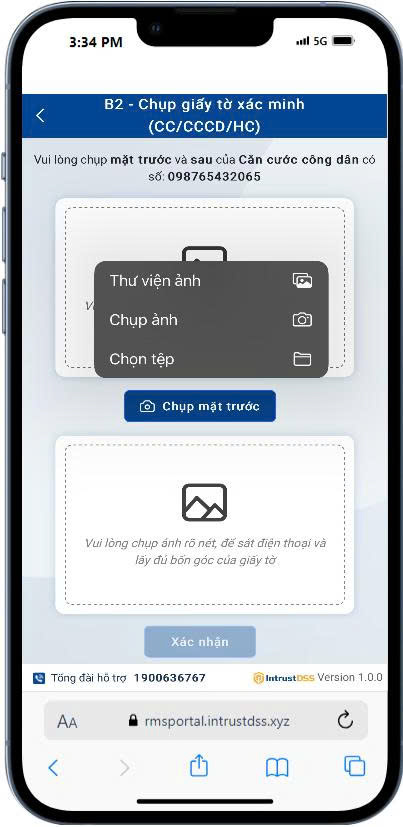
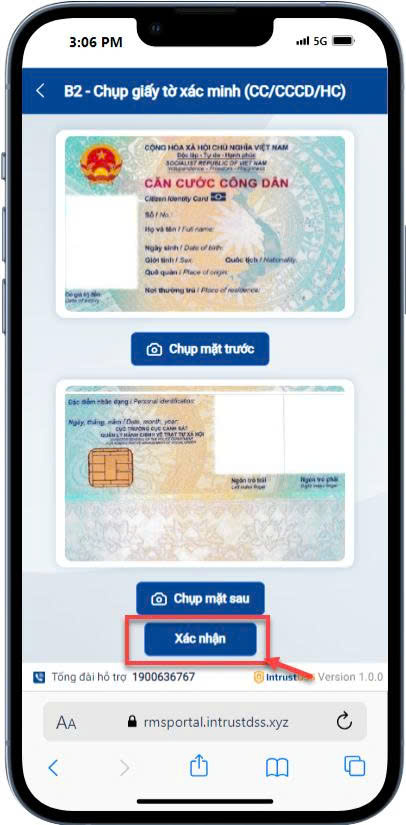
Take a photo/select a photo from the library/select an identity document file — capture both the front and back of the ID card (CCCD) → tap Confirm to complete the step.
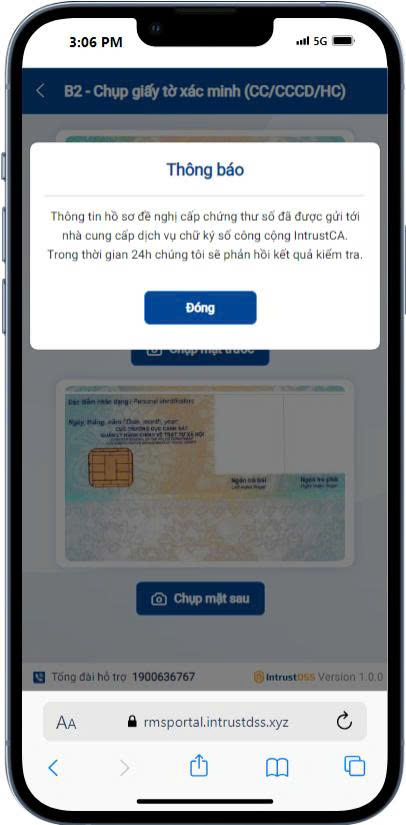
After the application photos are submitted successfully, the system responds with the review result by email within 24 hours.
3. Confirm the Remote Signing Account
-
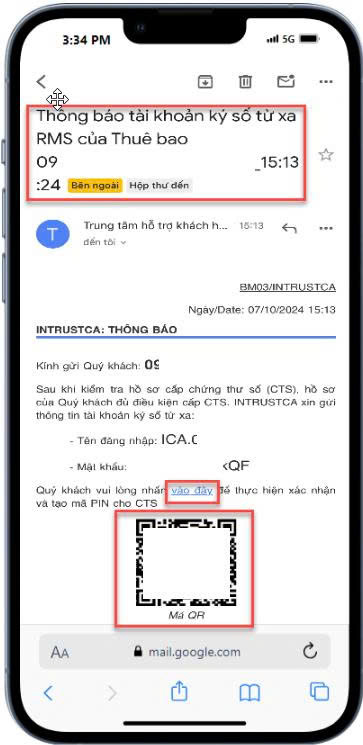
Once the application is approved by INTRUSTCA, the Subscriber receives the "RMS Remote Signing Account Notification" email (with a username and password) → access the link or scan the QR code in the email.
-
Tap Get code to receive the authentication OTP code → enter the OTP code the system sends to the registered phone number.
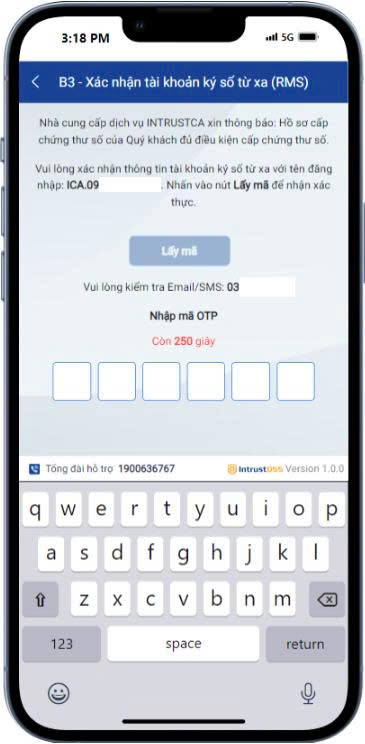
-
Once the OTP is valid, enter a 6-digit PIN code → tap Update.
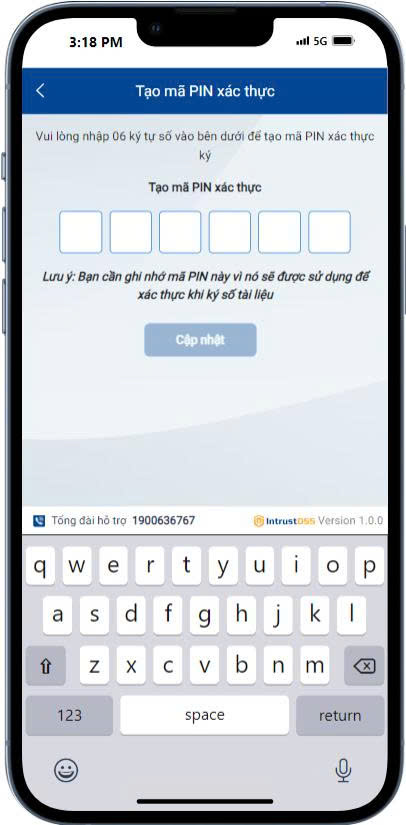
Remember this PIN code — it is used to authenticate when signing documents.
4. Confirm the Digital Certificate Information
-
Review the issued digital certificate information (Organization/Individual Name, Address, Certificate Type, Signing Method, Issuance Method, Validity) → if correct, tap Confirm to complete the process.
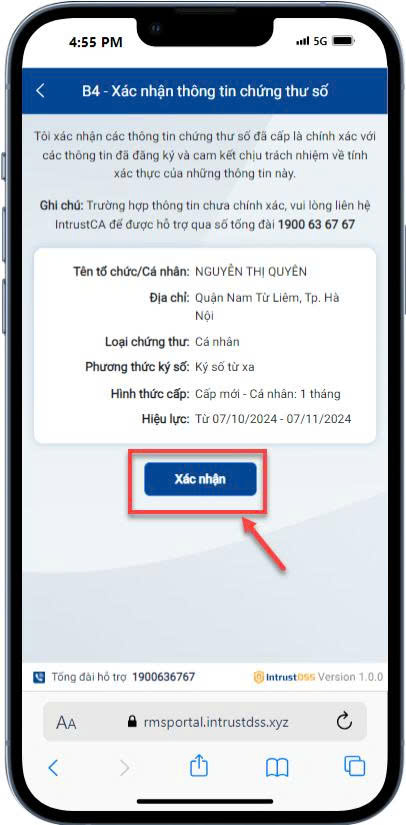
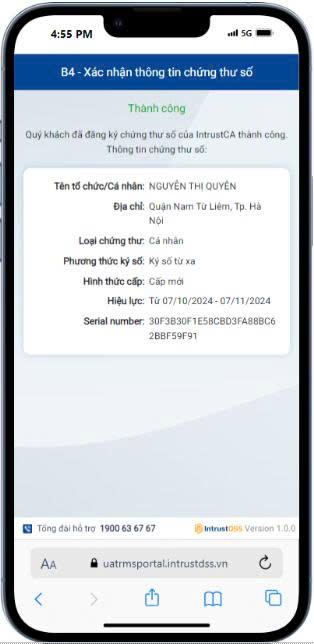
After this step, the Subscriber can use the issued remote signing account to sign documents — see the "PIN Code Authentication" group in the API Reference to call the API.
Account Management
Once registration is complete, the Subscriber logs in to the RMS remote signing account management portal at https://rmsportal.intrustdss.vn/ (Username/Password received via the RMS account notification email) to perform the management operations below.
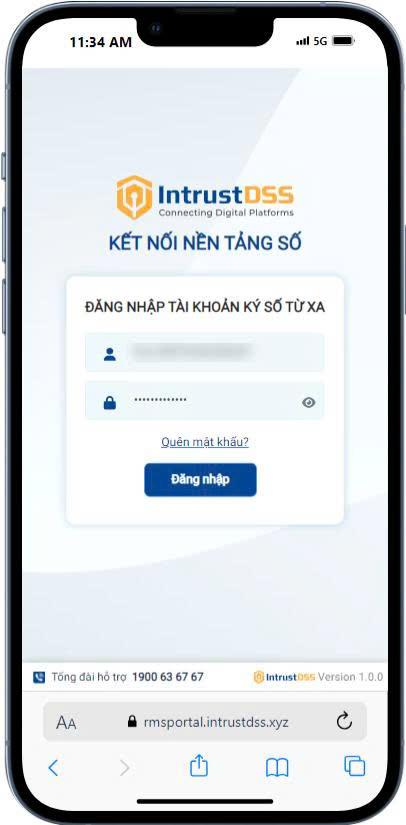
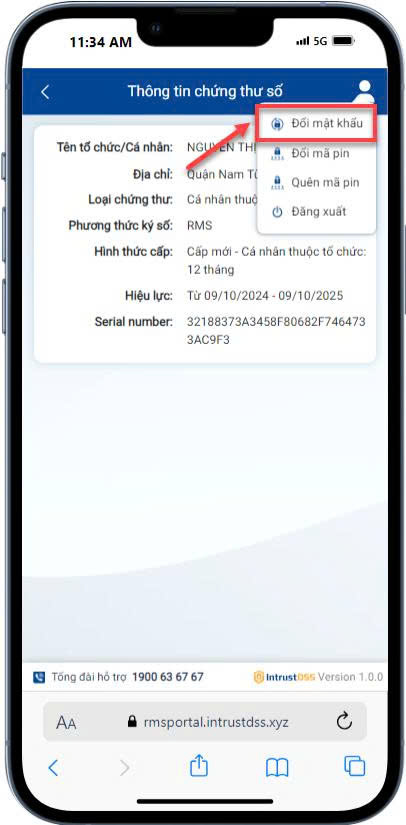
Change RMS Account Password
-
Log in to the portal → tap the account icon → select Change Password.
-
Enter the Old Password, New Password, and Confirm New Password → tap Update.
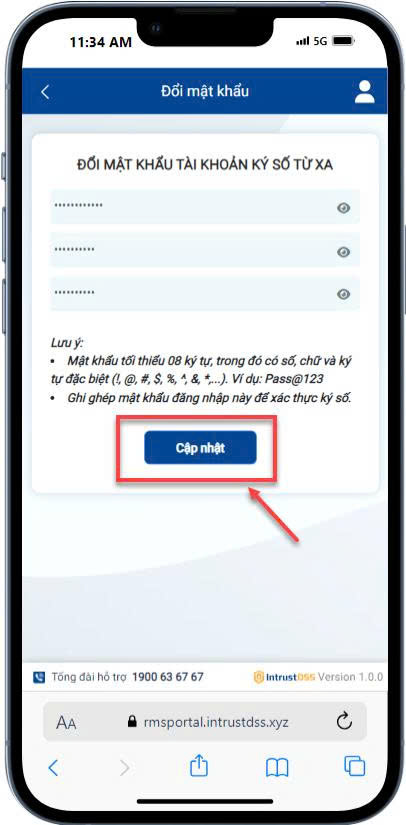
The password must be at least 8 characters, including digits, letters, and special characters (! @ # $ % ^ & *, etc.), for example Pass@123.
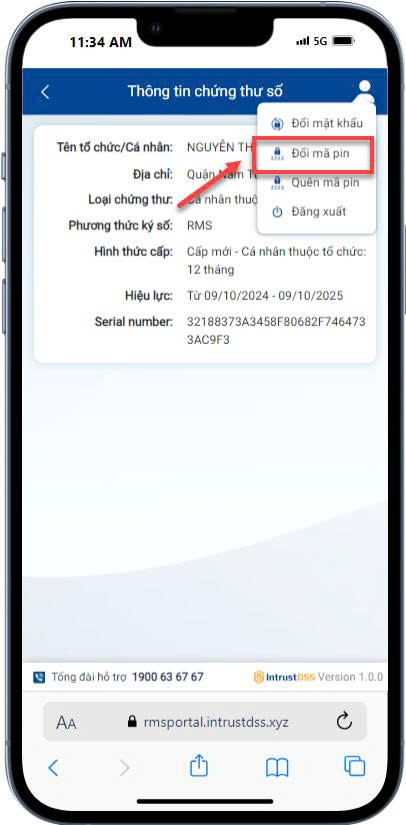
Change the CKS PIN Code
-
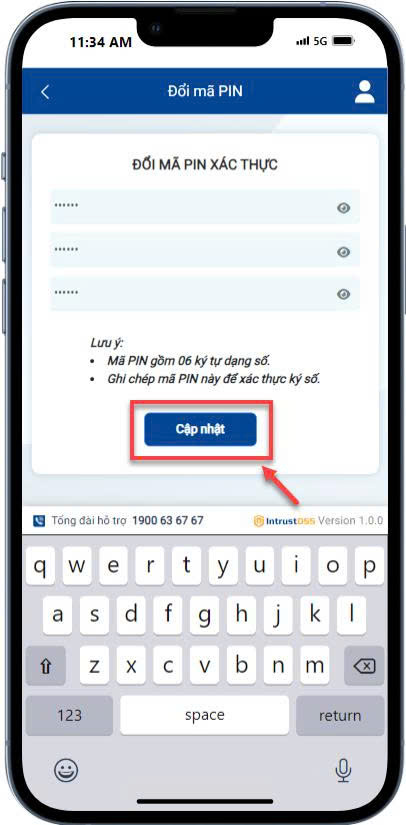
Log in to the portal → tap the account icon → select Change PIN Code.
-
Enter the Old PIN Code, New PIN Code, and Confirm New PIN Code (6 digits) → tap Update.
Recover the CKS PIN Code
-
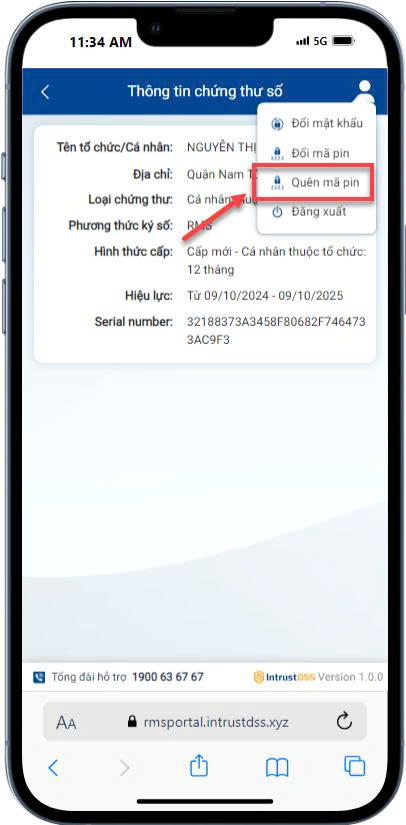
Log in to the portal → tap the account icon → select Forgot PIN Code.
-
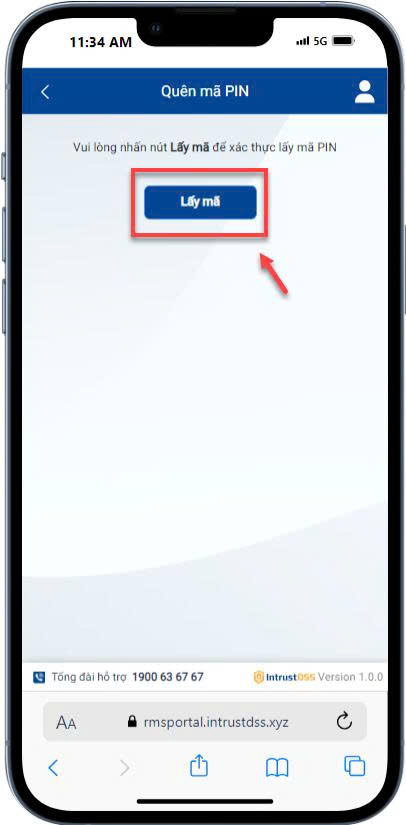
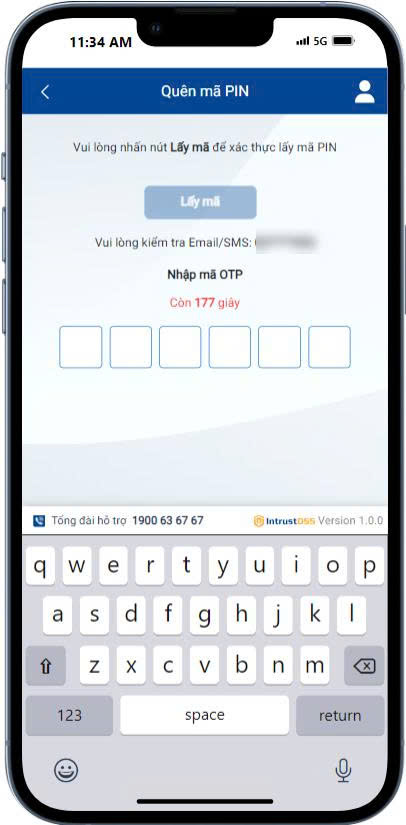
Tap Get code to receive the OTP code → enter the OTP code the system sends to the registered phone number.
-
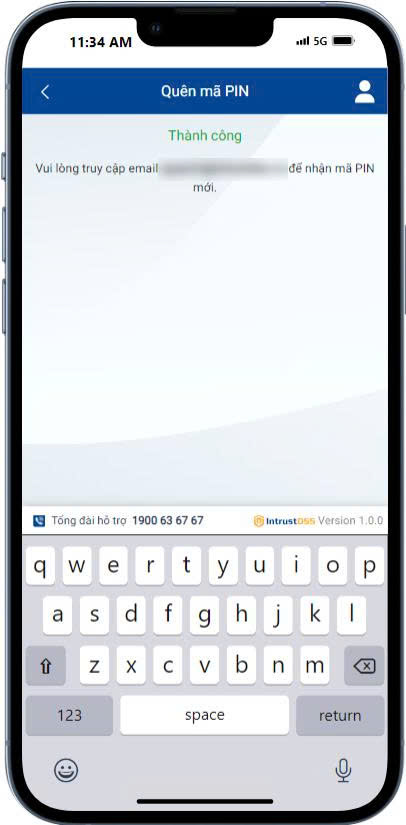
Once the OTP is valid, the system sends a new PIN code (6 digits) to the registered email.
Recover the RMS Account Password
-
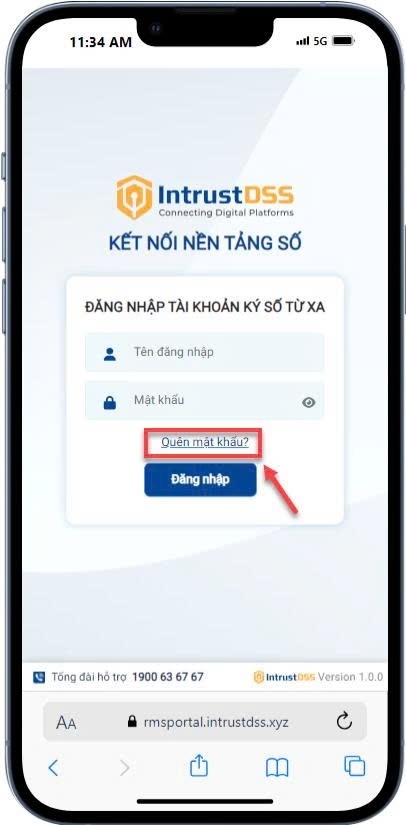
On the login screen, tap Forgot Password?.
-
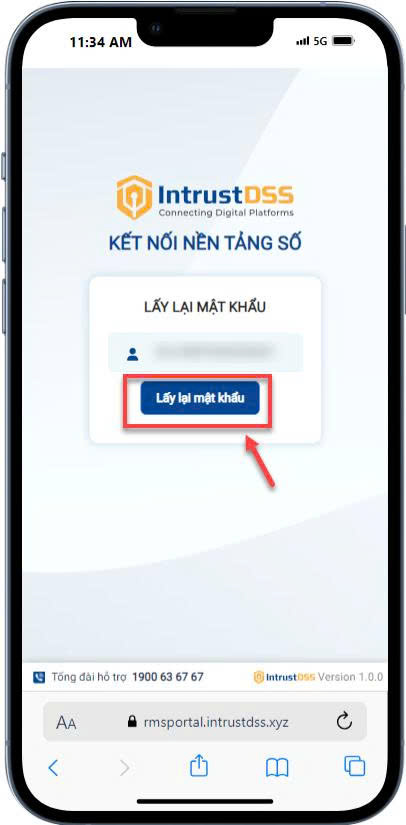
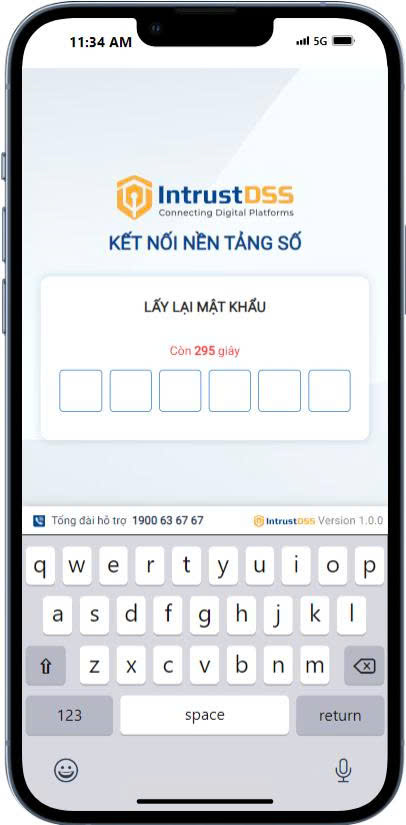
Tap Recover Password to receive the OTP code → enter the OTP code the system sends to the registered phone number.
-
Once the OTP is valid, the system sends a new password to the registered email.
See also
- CTS Registration & Issuance Process via Portal — describes the concept/overall diagram.
- API Reference — the "PIN Code Authentication" group, calling the signing API with a PIN code.
- Test Account Provisioning — a similar flow dedicated to test accounts.